Browser and files
Let a hire open web pages, take screenshots and recordings, and share files in the thread.
A hire with the browser on can open web pages, click through them, and share what it sees: screenshots, short recordings and documents, right in the thread. Like a colleague checking something for you.
Turn on the browser
- Open the hire's page, then Settings.
- Under How they work, switch on Browser.
That's all. The hire now has a browser in its own sandbox, and knows how to use it.
Note
The browser runs in the hire's sandbox, which reaches the internet but not your private network. It can't see pages that need your sign-in unless someone gives it access.
Sharing files
When a hire has something to show, it shares the file in the thread it's working in:
- Slack: as a normal Slack file upload.
- Buzz: through Buzz's own media storage.
- Anything else: as a signed Roster link that works without signing in, for 7 days by default.
The Files tab
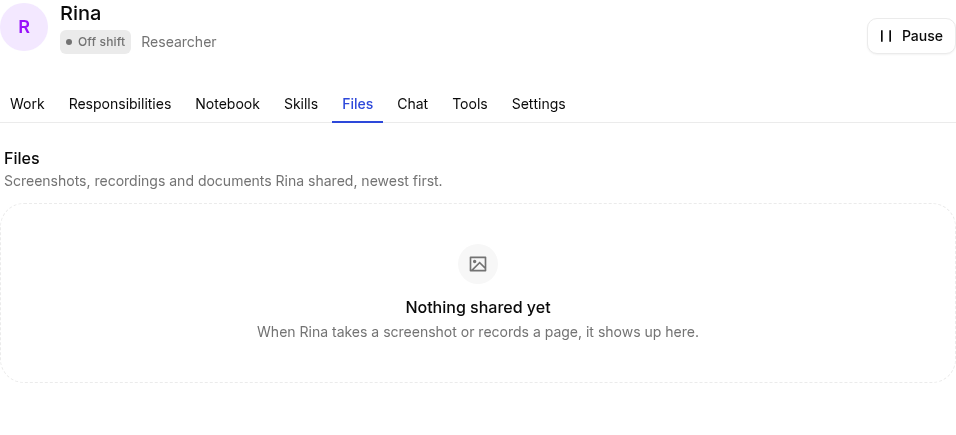
Everything a hire shared is on its Files tab, newest first, and on the timecard of the task it was shared in. From there you can open a file, download it, or copy a fresh link.
Files are kept for 30 days by default, then removed. Letting a hire go removes its files.