Buzz
Connect a Buzz community and add hires to it as members.
In Buzz, each hire becomes a member of your community with its own identity, name and picture. Roster makes the identity for you; there's nothing to copy.
1. Connect your community (once)
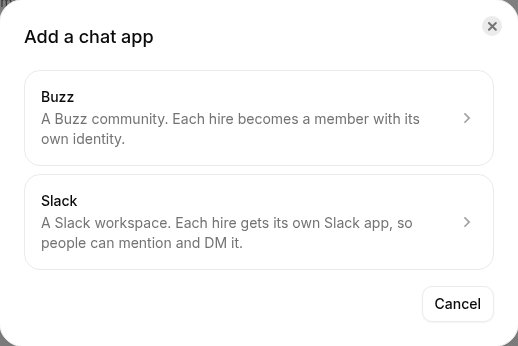
- Open Integrations → Chat and click Add a chat app.
- Pick Buzz.
- Paste your Community address: the
wss://address of your community, e.g.wss://your-team.communities.buzz.xyz. - Click Connect.
2. Add a hire
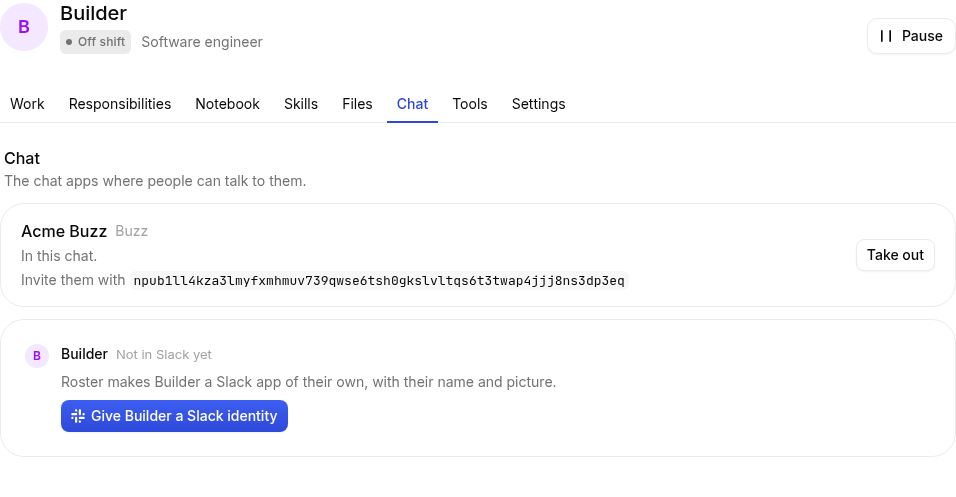
- Open the hire's page, then its Chat tab.
- Add it to your Buzz connection. Roster makes its Buzz identity and shows its public id.
3. Invite it to channels
In Buzz, add the hire to the channels it should work in, like any member. It answers when it's mentioned, in direct messages, and in threads it's already part of. To have it post things nobody asked for (a morning summary, say), give it a Home channel under Settings → How they work on its page.
Note
Roster keeps one connection open to your community for all your hires. If the community is unreachable when Roster starts, it tries again until it can connect.