Workspaces and members
Make workspaces, invite your team, and write the handbook every hire reads.
A workspace holds a team's hires, chat apps, tools, skills and handbook. You can belong to several and switch between them.
Switching and making workspaces
The workspace's name is at the top left of every page. Click it to switch to another workspace, or choose Create workspace to make a new one. You become its owner.
Rename or delete a workspace under Settings → Workspace. Deleting removes its hires, connections and everything they did, and can't be undone.
Messages to people outside the team
Hires can write to your customers by email, WhatsApp and text message (Twilio), and answer them in Chatwoot and Zendesk. Whatever you choose here, a hire never pretends to be a person, never uses a made-up name, and always says it's AI when someone asks, then offers to bring in someone from your team. Messages go out in your business's name, not a person's.
Under Settings → Workspace, Say it's an AI assistant in first messages to outsiders decides whether hires also say so up front, without being asked:
- Email: every email a hire sends ends with your business's name and a line saying an AI assistant wrote it.
- WhatsApp: the first message to someone starts with a line saying it's your business's AI assistant. Templates can't be changed when they're sent, so the first template to someone has to say it itself; the hire is told to pick one that does.
- Text messages: the first text to a number starts with that line.
- Chatwoot: the first reply in a conversation starts with that line. Private notes are never changed.
- Zendesk: the first public reply on a ticket starts with that line. Internal notes are never changed.
It's off unless you turn it on. Turn it on if the law where your customers are asks for it: in the EU it does (the AI Act). Only owners and admins can change it.
Your team's domains
Under Settings → Workspace, Your team's email domains lists the domains your team's own
addresses are at, like acme.com. People there are your team; everyone else is outside it.
Inviting someone outside to a meeting, or writing to them for the first time, waits for a
person's approval.
Leave it empty and Roster uses the domains your members sign in with, leaving out public mail providers like Gmail or Outlook.com. If it can't tell, everyone counts as outside, so hires ask. Only owners and admins can change it.
People you're already in touch with
A hire's first email, WhatsApp message, text or help-desk reply to someone outside your team waits for a person's approval. Roster only knows who your connections have been in touch with, so customers your team already writes to from its own mailboxes and phones would ask once each.
Under Settings → Workspace, People you're already in touch with lists them, so first messages to them go out without asking. Add any of:
- an email address, like
ali@client.com; - a domain, like
client.com, for everyone there (and at its subdomains); - a phone number with country code, like
+971501234567.
Separate several with commas or spaces. When someone approves a first message, its recipients are added here too, marked Added when a first message was approved. Remove someone and their next first message asks again. Everyone in the workspace can see the list; only owners and admins can change it. It doesn't change who counts as your team: inviting someone outside to a meeting still asks.
The same list is in the API as /api/workspaces/:ws/known-contacts.
Members
Settings → Members lists who's in the workspace and their role:
| Role | Can |
|---|---|
| Owner | Everything, including deleting the workspace |
| Admin | Everything else: invite people, change roles, set up hires and tools, change the org chart |
| Member | Work with hires, change their setup, add notes and skills, set goals for seats they manage |
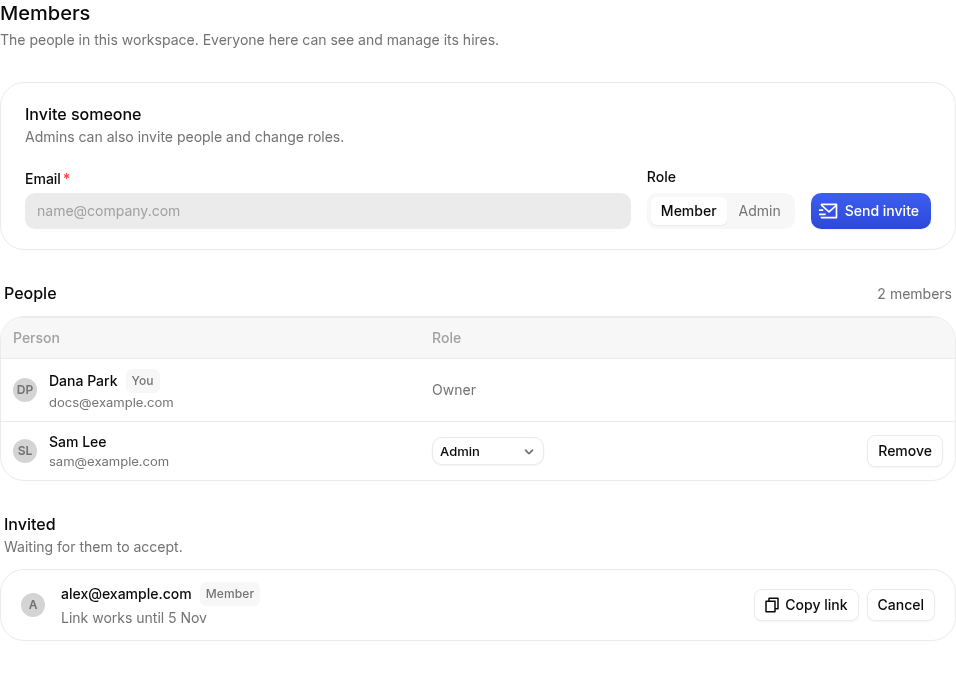
Inviting someone
- Under Invite someone, type their email and pick Member or Admin.
- Click Send invite. They get an email with a link; it opens Roster, where they sign up or sign in and join.
If Roster can't send email, it shows the invitation link instead, with a button to copy it. Pending invitations stay under Invited until they're accepted.
The handbook
Settings → Handbook is what every hire in the workspace knows: how your team works, who owns what, where things go. Short notes work best, one fact each. Pin the ones that matter most; hires always see pinned notes, and search the rest when they need them.
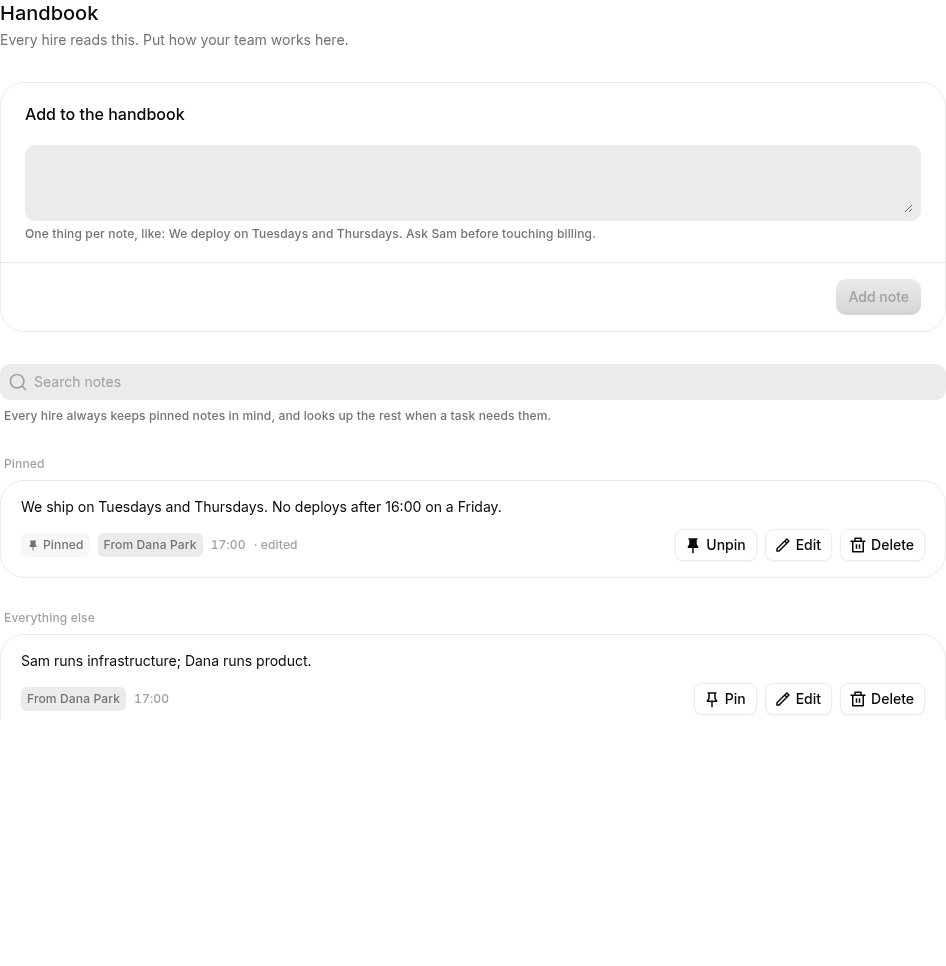
For something only one hire needs to know, use that hire's notebook.