Front Desk
Set Roster up by talking to it. Front Desk, Roster's built-in assistant, gets you to your first hire, and later changes hours, tools and anything else you ask, with your rights.
Roster has an assistant built in, called Front Desk. Tell it what you want in plain words, like "move Ledger to weekdays 9 to 5" or "give Scout access to Zendesk", and it does it in your workspace, the same way you would in the app. It's also how you start: a new workspace opens with Front Desk, which sets up your first hire with you in a couple of minutes.
Your first hire
When you sign up, or open a workspace that has no hires yet, Front Desk fills the screen, says hello ("Hi Dana, I'm Front Desk…") and asks two things:
- What you'd like help with. Pick one of the suggestions (chasing invoices, answering customers, engineering work, sales follow-ups) or write your own.
- What your team chats on: Slack, Microsoft Teams or Buzz. It shows a Connect card for it right in the conversation. For Slack and Buzz it opens the connect steps in a new tab; come back when you're done and click Continue. For Teams you paste your organisation's tenant ID right there, and each hire then gets its own Teams bot on its Chat tab (Microsoft Teams). When a hire needs a tool later, the same card connects it right in the conversation: in one click where the tool allows it, or with a key and the steps to make one (connecting tools).
Then it suggests a hire for the job, named after what it does (say, Ledger). When you agree, it hires it and shows it as a card: its avatar, its role, what it's responsible for and its working hours, with a link to its desk.
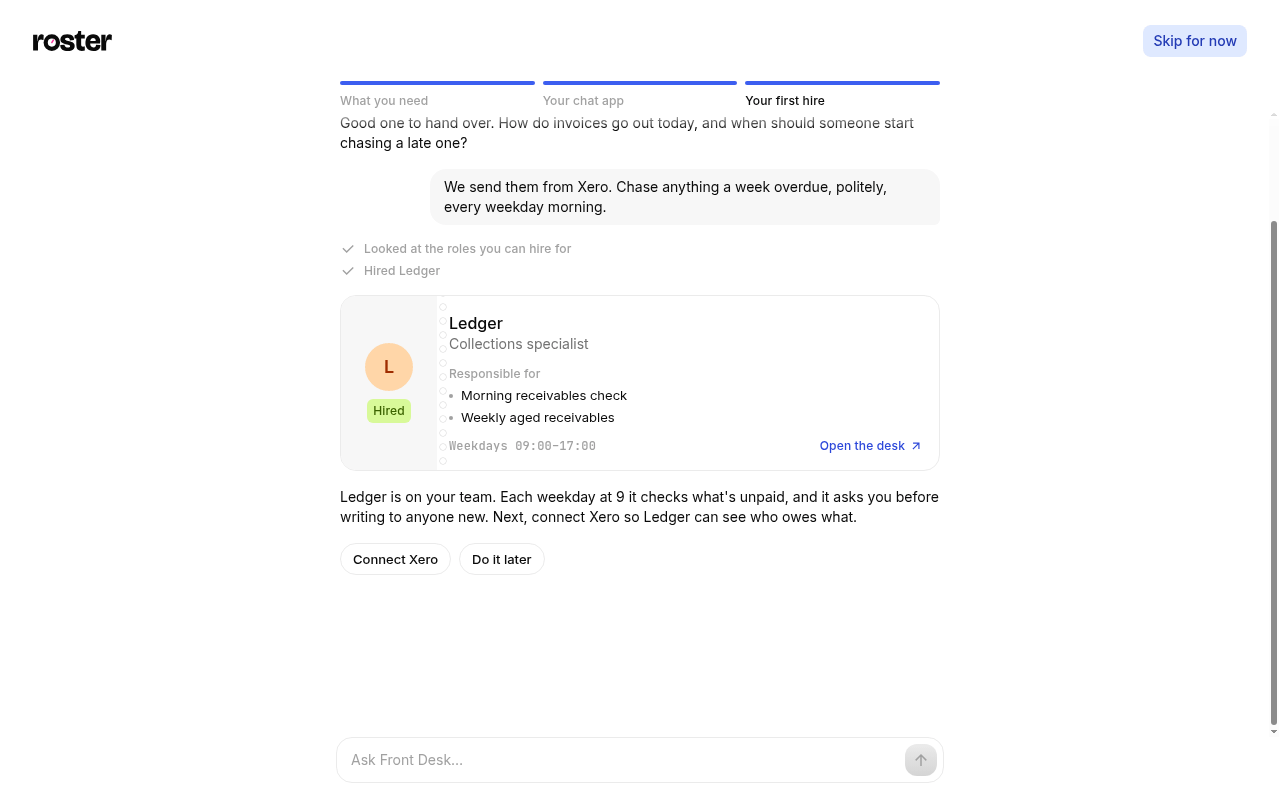
Skip for now is in the top corner the whole time. Skipping, or finishing, takes you straight into the app: the conversation moves into a side panel and carries on there, and everything set up so far stays. You won't see the full screen again in that workspace.
Ask any time
On every page there's a small bar at the bottom of the screen:
- Your workspace: switch to another, or make a new one.
- Search (⌘ K on a Mac, Ctrl K elsewhere): type to go to any page or hire, start a new hire, connect a chat app, invite people, switch workspace, or ask Front Desk what you typed ("Ask Front Desk…").
- Front Desk: opens it in a side panel.
On a computer or a wide tablet the panel sits beside the page, which narrows to make room, so you can keep working on the page while you talk to Front Desk. It stays open as you move between pages and next time you come back, until you close it. On a phone it opens over the page; close it with the × button or Esc, or by following a link from it.
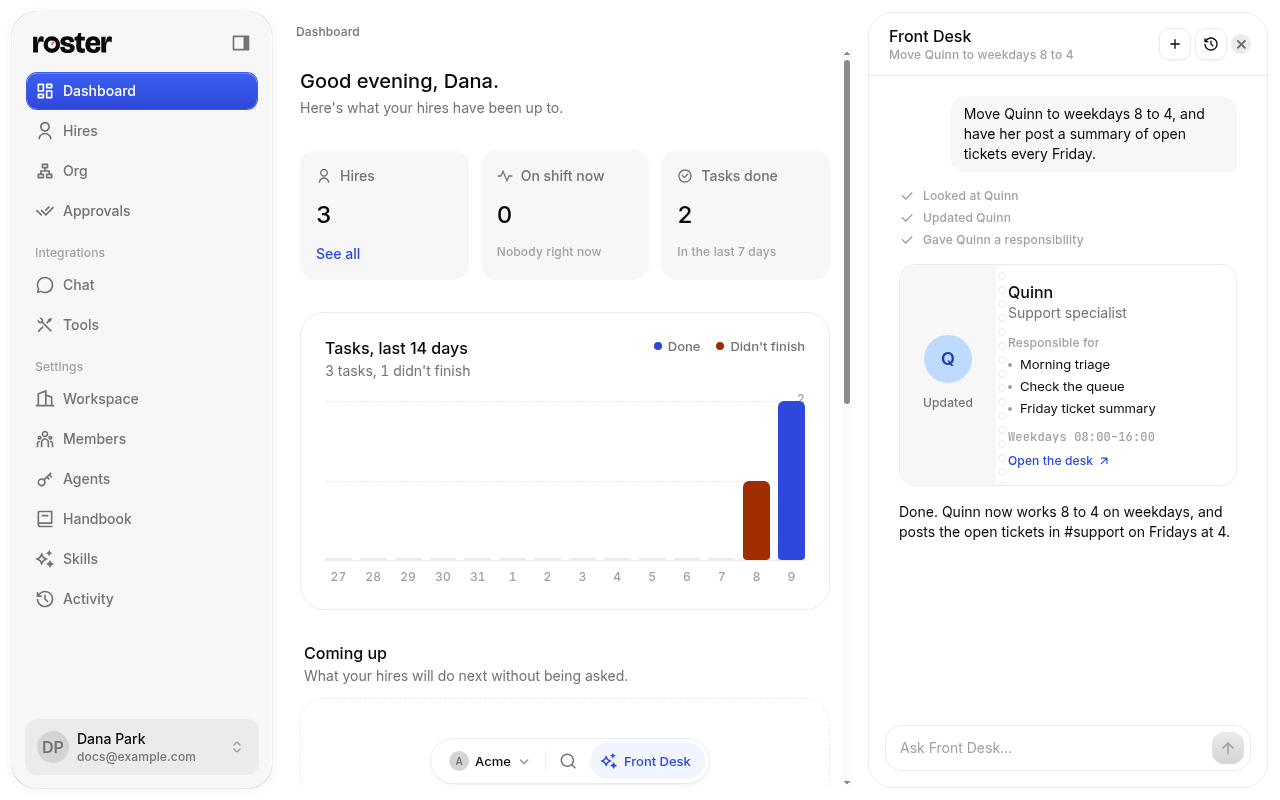
An empty conversation suggests a few things to ask. Some examples of what it can do:
- "Who's on shift right now?" or "What did our hires do today?"
- "Move Ledger to weekdays 9 to 5."
- "Give Scout access to Zendesk, read only."
- "Every Monday at 9, have Ledger post the overdue invoices in #finance."
- "Anything waiting for my approval?"
- "Invite sam@example.com as an admin."
While it works, it shows each step in a line ("Looked at your hires", "Updated Ledger"), and the hires it makes or changes as cards.
Conversations (the clock button in the panel) lists what you've asked before in this workspace. They're yours: nobody else in the workspace sees them. Start afresh with the + button.
Front Desk is included. Asking it things never adds to your bill and never pauses your hires. If your workspace leans on it a great deal in one month, it says it has reached its limit for the month; your hires and the rest of the app carry on as usual, and Front Desk is back on the 1st.
How it stays safe
- It acts as you. Front Desk has your role in the workspace, checked on every change. As an owner or admin it can change hires, tools and the org; as a member it can read, add notes, give feedback and do what members do. If something needs a role you don't have, it says so.
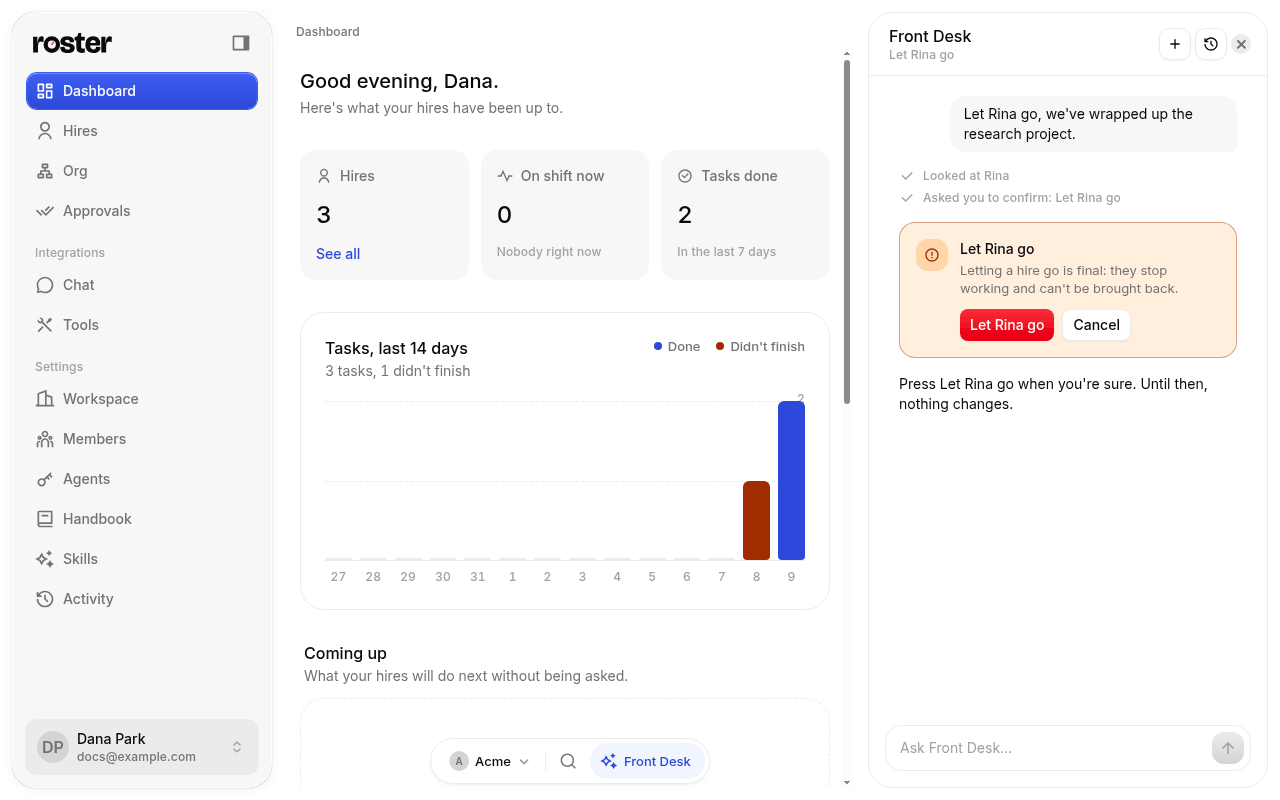
- It asks before anything final or anything that moves money. Letting a hire go, removing a connection, a note or a responsibility, cancelling an invitation, approving a request, and connecting or giving a hire a payments tool (Stripe, Wise…) wait for you: Front Desk shows a card saying what will happen, and nothing changes until you click the button on it. Cancel leaves everything as it was.
- The same rules as the app. Seats, hire limits, approvals and locked tools apply exactly as they do for you.
- Some things stay with you. Signing in to a tool with OAuth, installing a hire's Slack app, and making API tokens are done in the app; Front Desk points you there.
- Everything is recorded. What Front Desk changes shows in Settings → Activity as made on your behalf, for example "Front Desk for Ada hired Ledger".