Adding a tool
Find the tools your team uses in the catalog, connect them, and choose what each hire may do in them.
Hires get work done in the tools your team already uses: your accounting software, mailbox, tracker, CRM, code. Roster's catalog lists close to two hundred of them, each with its own page here: see every tool, with a search. Anything that isn't listed can still be connected with an MCP server or as a custom API.
Whatever you connect, the sign-in stays inside Roster. Hires use the tool through Roster; they never see a token or password, and they can't do more than you allow.
Find it in the catalog
- Open Integrations → Tools and click Add a tool.
- Type what you're looking for: a name (
Xero), or what you do with it (invoices,git,calendar). Or pick a category. Use ↑ and ↓ to move and Enter to choose.
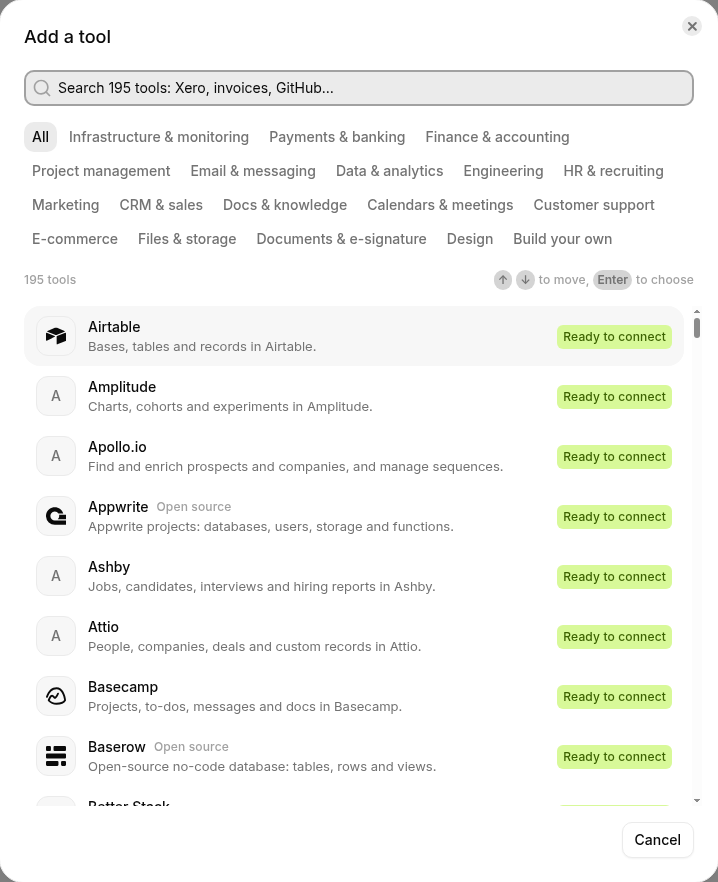
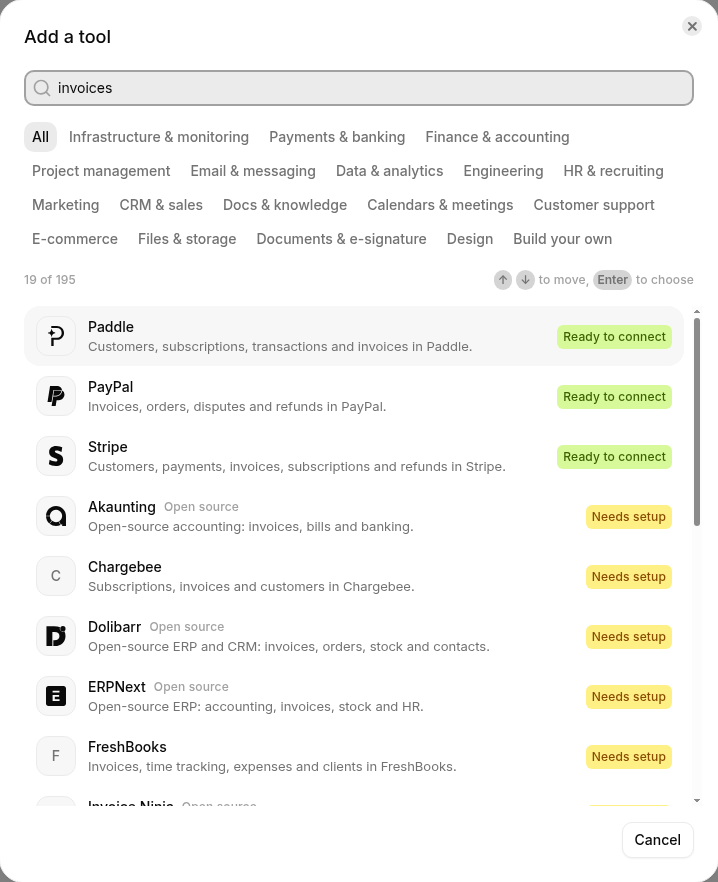
Each tool says how ready it is:
| Label | What it means |
|---|---|
| One click | Click Connect, approve Roster on the tool's own page, and you're back, connected. |
| Ready to connect | Connect it and it works: paste a key (Roster shows you where to make it), or sign in with the tool. |
| Needs setup | It works once you've done the steps shown, such as creating an app at the tool or giving your own address. |
| Needs a registered app | The tool now only lets new connections in through an app registered with it. Connections already made keep working. |
Connecting tools
Choosing a tool shows how to connect it, with a link to its own docs and, where there is one, a guide here. Roster always takes the shortest way the tool allows.
One click
For tools marked One click, there's nothing to fill in. Click Connect …: Roster makes the connection and opens the tool's own page, you click Allow (or Authorize), and you're back in Roster, connected. If you change your mind on the tool's page, nothing is left behind.
Some tools you run yourself work the same way once Roster knows where they are. For WooCommerce, give your store's address and click Approve in WooCommerce: your store makes a key for Roster and sends it over, with nothing to copy.
A key, guided
Most other tools connect with a key or token you make at the tool. Roster walks you through it:
- Open the key page. The button takes you straight to the page in the tool where keys are made, with the right permissions already ticked where the tool allows it. For a tool you run yourself, the link appears once you've typed its address.
- Give it what's listed. When the tool can't tick the permissions for you, Roster lists the exact ones to choose, in the tool's own words.
- Paste it and click Connect. Roster checks the paste as you type: if it doesn't look like
that tool's keys (say a Stripe key that doesn't start with
sk_orrk_), it tells you before anything is sent. Then it checks the key with the tool itself and shows whose account it is: Connected as Acme FZ-LLC.
If the tool refuses the key, nothing is saved, and the message says what to fix: copy all of the key, make a new one, or give it a permission it's missing. If the tool can't be reached right now (a self-hosted tool on your own network, say), you can choose Save without checking.
Where the tool lets Roster do it, Roster also sets up the tool's updates (its webhook) itself, so there's no address to copy into the tool. Removing the connection removes that webhook too.
Keys are kept sealed and never shown again; leave the field empty when you change other settings later and the saved one stays.
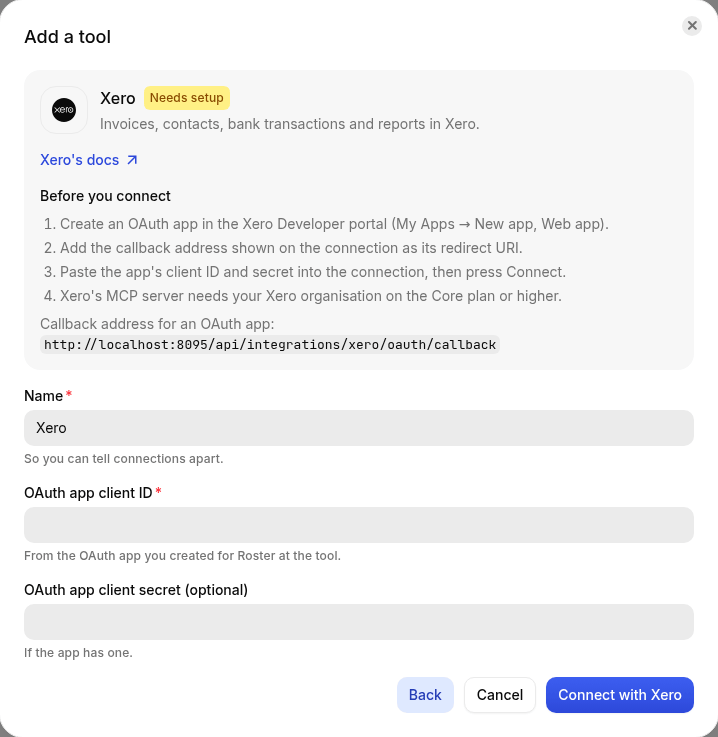
Your own app, or your own address
Some tools need an OAuth app made in the tool first, or give each customer their own address. Their steps are under Before you connect, with the callback address to paste into your app.
When a connection needs reconnecting
Keys get revoked and sign-ins expire. When a tool stops accepting Roster's, the connection says Needs reconnecting, with what the tool said and a one-click fix: Reconnect takes you back to the tool to approve again, or opens the key form for a new key. Hires that need it don't fail quietly: they say in chat that the tool needs reconnecting, and share a link to fix it.
Connect links in chat
A hire that needs a tool it doesn't have (or one that needs reconnecting) can post a link in the thread, such as Connect Zoho Books, with a line on why. Whoever opens it with the right to add tools to the workspace connects it right there, in one click or with the guided key form, and goes back to the chat. People who can't add tools are asked to pass the link to someone who can. Links work for 24 hours. A full list of where each tool's key is made is in Where to make each key.
Test it and choose its tools
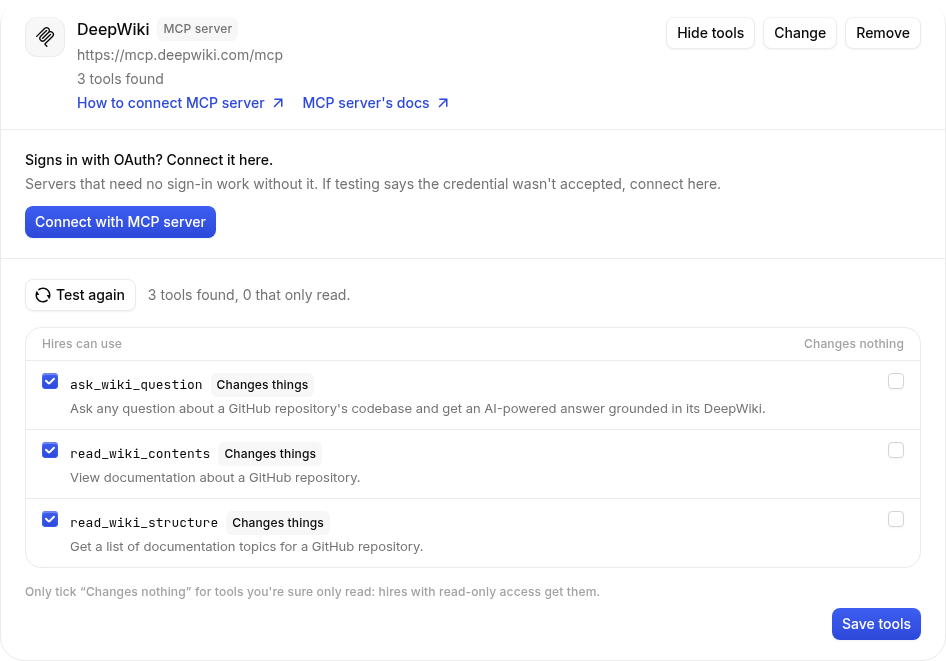
Some tools tell Roster what they can do when it asks: MCP servers, and APIs with an OpenAPI document. After connecting one, click Test connection. Roster lists every tool it found and whether it only reads or changes something.
- Untick a tool to keep it from every hire.
- A tool the server doesn't mark as read-only counts as Changes things. If you're sure it only reads, tick Changes nothing, and hires with read-only access can use it too.
Click Save tools. Test again any time from the connection's Tools button to pick up new ones.
On these connections, Ask before using decides whether hires ask a person first: choose Tools that change things, and every call to a tool here that changes something waits for an approval in chat. Roster then does exactly that call, once, when it's approved.
Choose what each hire may do
Connecting a tool doesn't give it to anyone. On a hire's page, open Tools and click Give access on the connection:
- Read only: the hire can look things up and never changes anything. It isn't even given the tools that would.
- Read and write: it can also create, comment and update.
- Allowlists: the projects, repositories, teams or paths it may use. Every call outside them is refused.
- Tools: for tools found by testing, which of them this hire may use.

Everything a hire does in a tool is on its timecard, step by step.
When a hire asks first
Some tools ask a person before they do certain things: a calendar before inviting someone outside your team, a mailbox before a first email to a stranger, Stripe before every refund. The call doesn't happen; the hire asks in the thread, and when the approver says yes, Roster does exactly that, once (more).
To change it for one hire, open When it asks first on the tool's card on the hire's Tools tab. Each tool that changes something is listed with its own rule, and you can choose:
- Its rule: as the tool decides (for example, only for people outside your team).
- Always ask: every use waits for a person.
- Never ask: the hire goes ahead without asking.
Tools that move money (refunds, voiding an invoice) always ask, and that can't be changed.