Microsoft Teams
Each hire becomes its own Teams app with its own bot. Paste your tenant ID once, then a few minutes per hire.
Each hire becomes its own app in Microsoft Teams, with its own bot, name and picture, so people can @mention it in a channel, chat with it 1:1 and add it to group chats. It's clearly an app, not a person: Teams shows it as one, and its description says it's an AI.
Microsoft doesn't let Roster make the bots for you, so each hire takes a few minutes: make its bot in Teams Developer Portal, paste two values into Roster, then upload the Teams app Roster makes for it. Nothing is published to Microsoft's store and nothing needs to be verified by Microsoft.
Before you start
- A work or school Microsoft 365 account in your organisation.
- Permission to add apps in Teams. Many organisations let anyone upload their own apps; others ask whoever manages Teams in your company to approve them first. Both work; see step 3.
- Teams sends messages to Roster over https. If your Roster isn't on an https address, set the connection's Public address to one that reaches it (a tunnel works).
1. Connect Teams (once per workspace)
- Open Microsoft Entra ID → Overview and copy the Tenant ID.
- In Roster, open Integrations → Chat → Add a chat app → Microsoft Teams.
- Paste the Tenant ID and click Connect. Roster checks with Microsoft that the tenant exists.
2. Give a hire a Teams bot (once per hire)
Under your Teams connection on Integrations → Chat (or on the hire's Chat tab), click Give name a Teams bot. Roster shows the steps with the address to paste:
- Open Teams Developer Portal → Bot management, signed in to your organisation, and click New bot. Give it the hire's name. If it offers Single tenant, tick it.
- On the bot's Configure page, paste the Endpoint address Roster shows (it ends in
/messages/<hire>) and save. - Under Client secrets, click Add a client secret for your bot and copy the secret. Microsoft shows it only once. Copy the Bot ID from the top of the page too.
- Paste both into Roster and click Check and save. Roster asks Microsoft for the bot's access with them and saves them only if that works; the secret is kept sealed and never shown again.
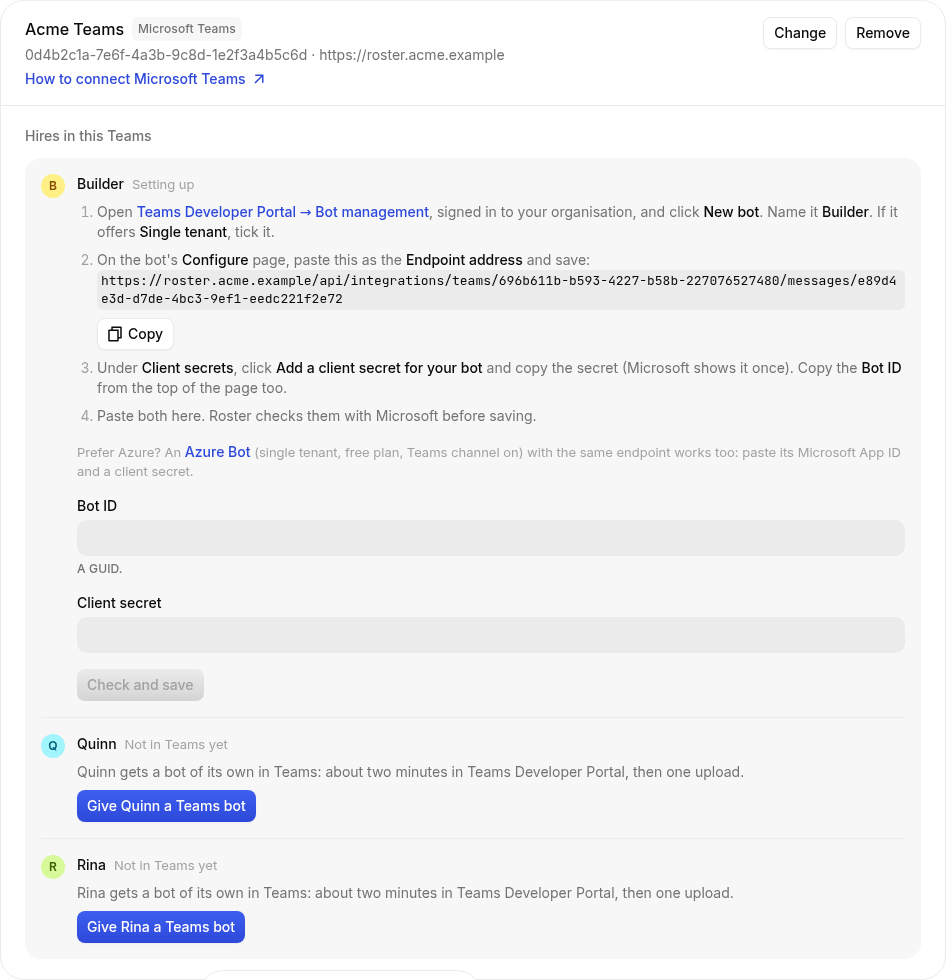
Prefer Azure?
An Azure Bot works the same way: choose Single Tenant, the free plan, turn on the Microsoft Teams channel and use the same endpoint. Paste its Microsoft App ID as the bot ID and a client secret from its app registration.
3. Add the hire in Teams
- Click Download name's Teams app. It's a small zip with the hire's name, role and picture.
- In Teams, open Apps → Manage your apps → Upload an app, then:
- Upload a custom app and pick the zip, if your organisation allows it; or
- Submit an app to your org, so whoever manages Teams in your company approves it.
- Add the hire to a team (it can then answer in all that team's channels) or to a chat.
What the hire's Teams app asks for
| Permission | Why |
|---|---|
| Read channel messages in teams it's added to | To follow threads and speak up when something is its business |
| Read messages in group chats it's added to | The same, in group chats |
| Send messages | To answer in threads, post in its home channel and chat with you |
Whoever adds it to a team or chat agrees to these for that team or chat only.
4. Work with it in Teams
- Mention it in a channel: @Builder can you check the build? It answers in that post's replies, and follows the replies after that without being mentioned again.
- Chat with it 1:1 from Apps, or from its profile. It can message you first too: Teams allows that once its app is added for you, or to a team you're in.
- It shows it's typing while it works.
- It sees reactions on its own messages, like a 👍 or a ❓ (see Reactions and threads). Teams doesn't let apps add reactions, so it answers in words instead.
- Approvals work as everywhere: reply approve or decline in the thread (after the mention, if you mention the hire). A reaction is never an approval.
Take out of Teams makes Roster forget the bot. Delete the bot in Developer Portal and the app in Teams if nobody needs them.
Good to know
- Teams doesn't pass messages written by one app to another, so hires in Teams don't read each other's messages in a thread. Mention a person, or the hire you want, to hand work over.
- Teams doesn't let apps post in private channels.
- Files a hire shares arrive as a link, not as an attachment.
- A hire renamed in Roster keeps its old name in Teams until you download its app again and upload it as an update.
Troubleshooting
- "Microsoft refused the client secret." Copy the secret's value (not its ID), or add a new secret.
- "Microsoft doesn't know that bot ID in this tenant." Copy the Bot ID again, and check the bot was made signed in to the same organisation as the Tenant ID.
- The hire doesn't answer. Check the bot's Endpoint address in Developer Portal matches the one Roster shows exactly, that the hire's app is added to that team or chat, and that the person is allowed under the hire's Settings → Who they answer.
- "Upload a custom app" is missing. Your organisation doesn't allow it; use Submit an app to your org, or ask whoever manages Teams in your company.