Timecards and feedback
See what a hire did, step by step, and tell it what to do differently.
Every task a hire works on becomes a timecard: who asked, where, when it clocked in and out, each step it took, and how it ended.
The desk
While a hire is on shift, the top of its Work tab is its desk: the task in hand, open, with each step appearing as it starts ("Ran a command", "Read a pull request") and "Thinking about what to do next" in between.
Timecards
Below the desk are its timecards, newest first, grouped by day.
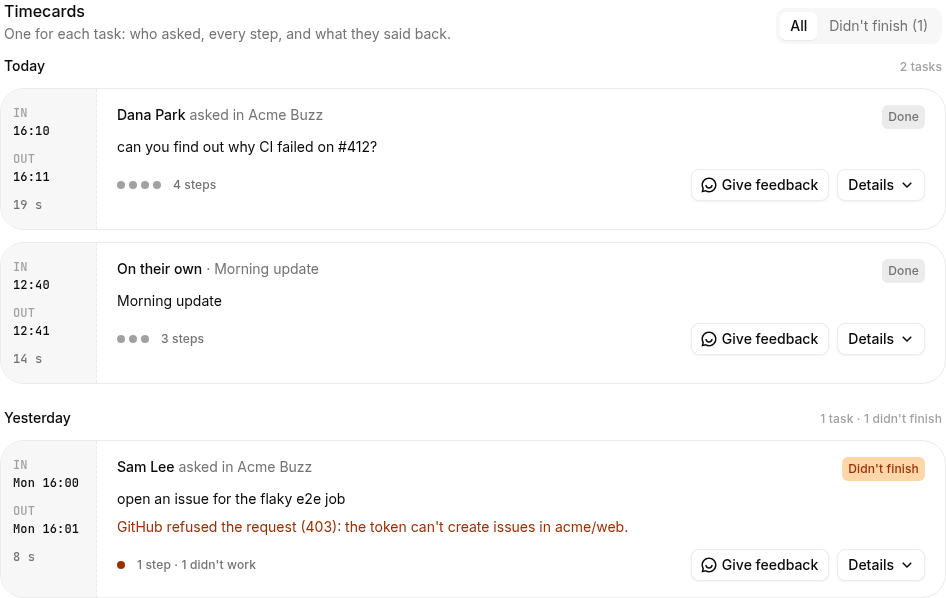
- On the left: IN, OUT and how long it took.
- On the right: who asked and where, what they asked, and a row of holes, one per step. An orange hole is a step that didn't work.
- Didn't finish means the hire couldn't complete the task. Open the card to see why, in one plain sentence, with the details folded away.
Open a timecard to see the whole timeline, what the hire said back, and any files it shared. Show only the ones that didn't finish with Didn't finish above the list.
Time on shift on timecards is also what a department's monthly hours count. When a department's hours run out, work nobody asked for is skipped; for now those skips show as Didn't finish too.
Evidence
When a hire says something is done, it says how it knows: a link, an id you can look up (PR #412, invoice 2041) or a number and where it came from. Roster won't let a hire close work or a goal as done without it, so a timecard that ends in "done" points at something you can check.
- On the timecard: open it, and the step where the hire finished the work ("Finished: Migrate CI") or a goal shows the evidence right under it. Links open in a new tab.
- On the Work tab: under Working on, Done lately lists the last few things the hire finished, each with its evidence. Work someone on your team marked done shows No evidence given.
See Goals and evidence.
Feedback
On any timecard, click Feedback and write what to do differently: "Post release notes in #releases, not #general."
- Your feedback becomes a note in the hire's notebook, so it remembers next time.
- Tick Tell name in the thread to have the hire hear it where the work happened. It answers there, briefly.
Files on timecards
When a hire shares a screenshot, a recording or a document while working, it's on that timecard too, and on the hire's Files tab. See Browser and files.