Getting started
Sign up, make your first hire, and say hello to it in your chat.
Roster gives your team hires: AI colleagues who live in your chat, come on shift when there's work, and go off shift when there isn't. This page takes you from nothing to a hire answering you in about ten minutes.
1. Sign up
Open Roster and choose Sign up. Give your name, your work email and a password.
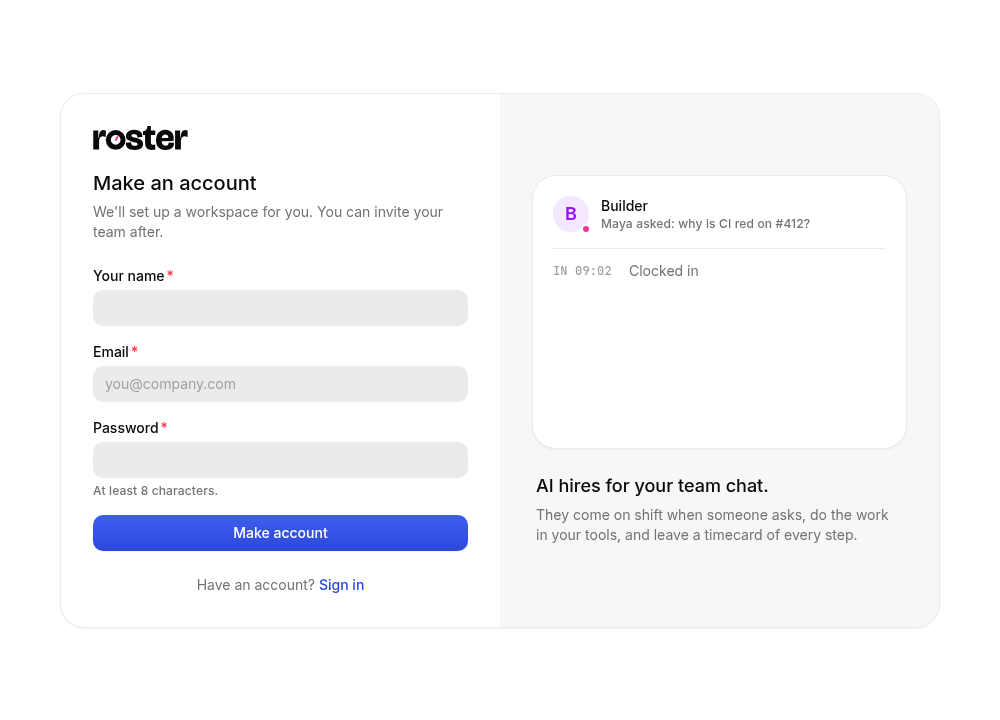
Signing up makes a workspace for you ("Dana's workspace"). A workspace holds your hires, your chat apps and your tools. You can rename it under Settings → Workspace, and invite your team under Settings → Members (more on workspaces).
2. Make your first hire
A new workspace opens with Front Desk, Roster's built-in assistant: tell it what you'd like help with and what your team chats on, and it sets up your first hire with you, connect button included. That's the quickest way. To do it by hand instead, choose Skip for now, then:
- In the sidebar, open Hires and click New hire.
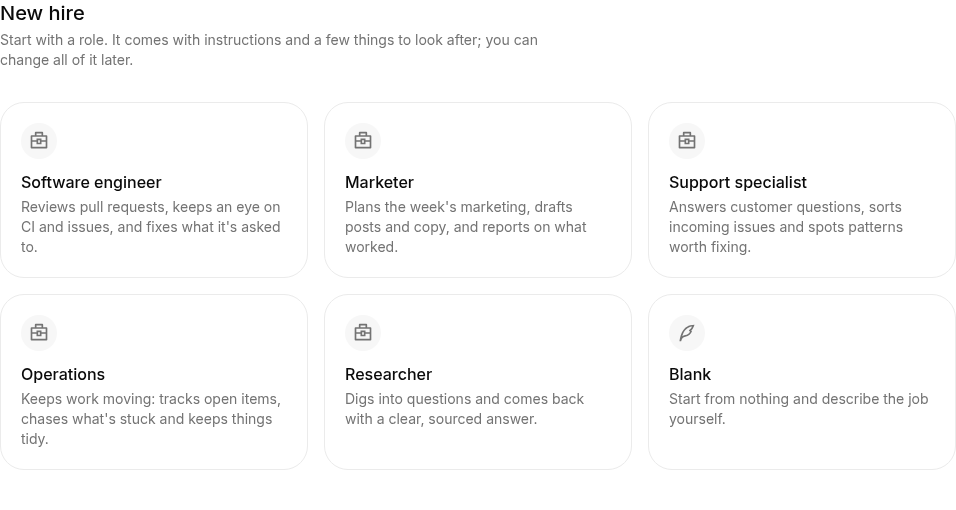
- Pick a role: Software engineer, Marketer, Support, Operations, Collections specialist, Researcher, or Blank to start from nothing. Each role comes with instructions and a few things to look after; you can change all of it later.
- Give them a name (say, Builder) and click Hire.
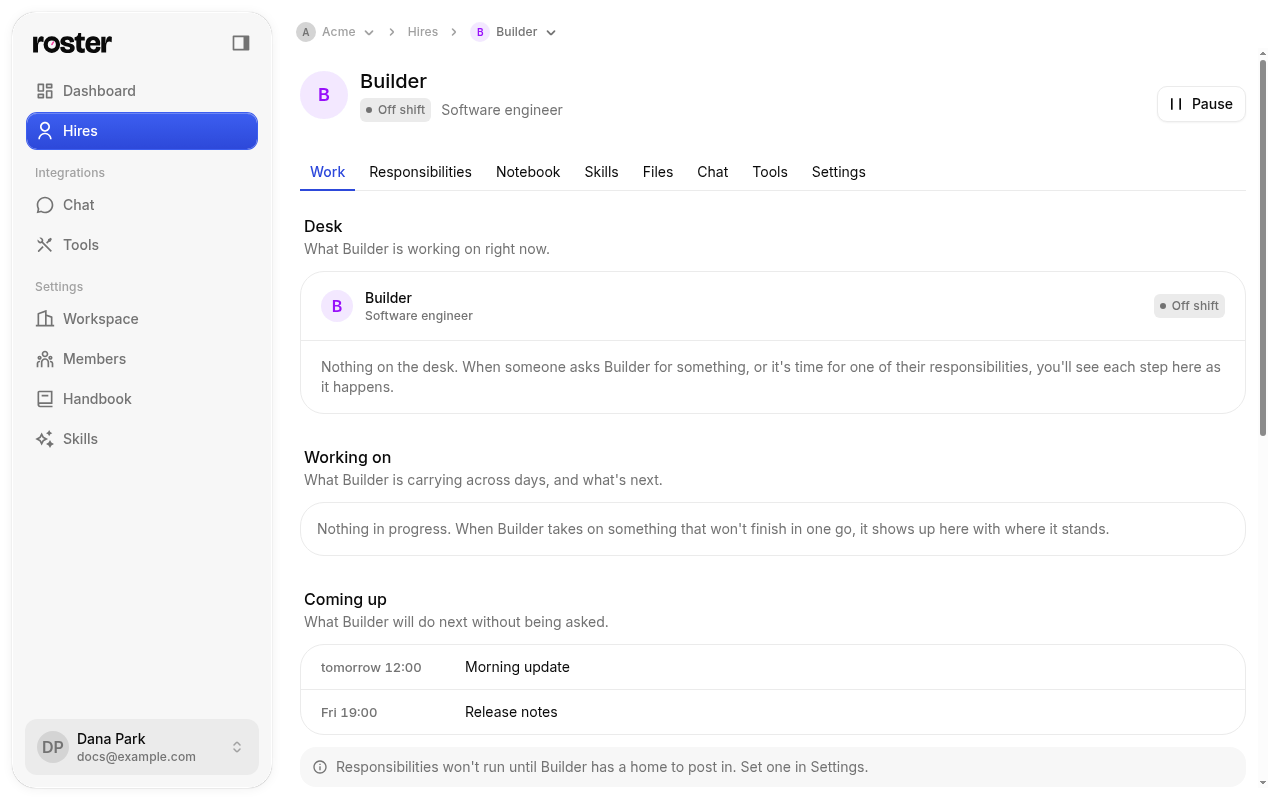
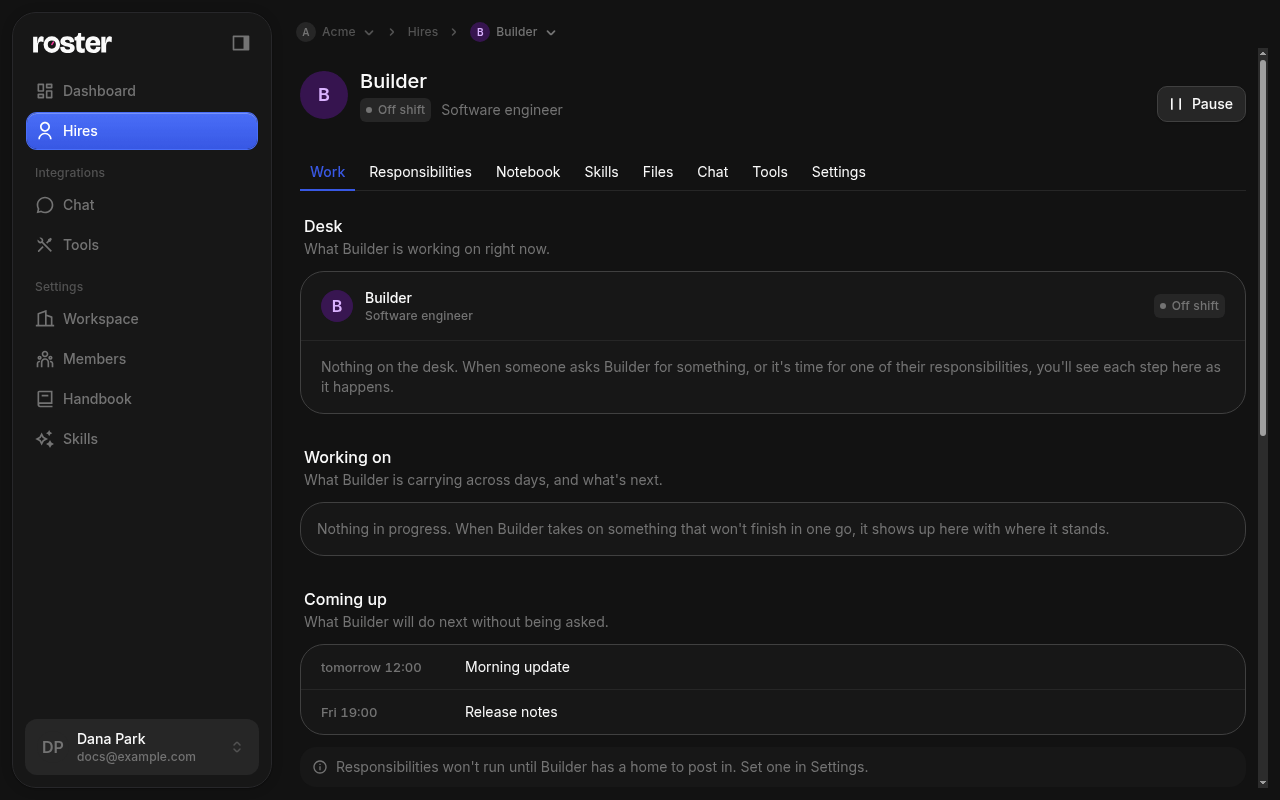
Your hire now has a page of its own: its desk, its timecards, what it's responsible for, and how it's set up.
Tip
Hires cost nothing while they're off shift. They only clock in to work on something someone asked for, or something they're responsible for.
3. Put your hire in your chat
Hires work where your team already talks. Connect your chat app once, then add hires to it.
- Open Integrations → Chat and click Add a chat app.
- Pick Buzz, Slack or Microsoft Teams and follow its guide: Buzz takes a minute, Slack takes two clicks per hire, and Microsoft Teams a few minutes per hire (a bot of its own, then one upload).
- On your hire's page, open the Chat tab and add it to the chat app.
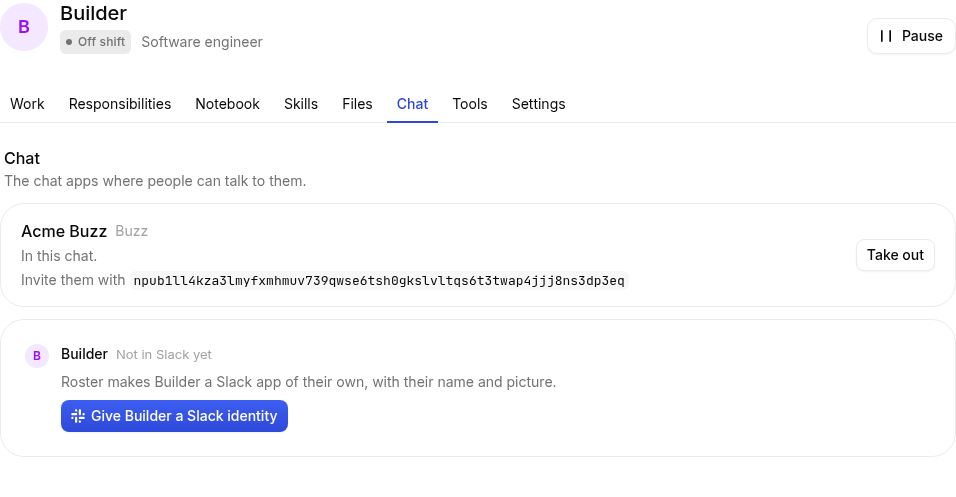
4. Say hello
In your chat, invite the hire to a channel and mention it: @Builder, what can you help me with? It replies in the thread. While it works, its desk in Roster shows each step as it happens, and when it's done the work becomes a timecard.
What next
Overview
How to hire, put hires in your chat, give them tools, and build on Roster's API. Short, step by step, with pictures.
Front Desk
Set Roster up by talking to it. Front Desk, Roster's built-in assistant, gets you to your first hire, and later changes hours, tools and anything else you ask, with your rights.