Slack
Each hire becomes its own Slack app. Paste one token pair, then two clicks per hire.
Each hire becomes its own Slack app, so people can @mention it, DM it and see it in the member list with its own name and picture. Roster makes those apps for you; Slack only asks a person to click twice: once to give Roster a token, once per hire to let it in.
Before you start
- You need to be able to add apps to the Slack workspace: an admin, or a workspace where members may install apps.
- Slack sends messages to Roster over https. If your Roster isn't on an https address, it uses Socket Mode and asks you to copy two tokens per hire instead; see Socket Mode below.
1. Connect Slack (once per workspace)
- Open api.slack.com/apps and sign in to your Slack workspace.
- Under Your App Configuration Tokens, click Generate Token and pick your workspace.
- In Roster, open Integrations → Chat → Add a chat app → Slack.
- Paste the Access Token (it starts with
xoxe.xoxp-) into Configuration token, and the Refresh Token (it starts withxoxe-) into Refresh token. Click Connect.
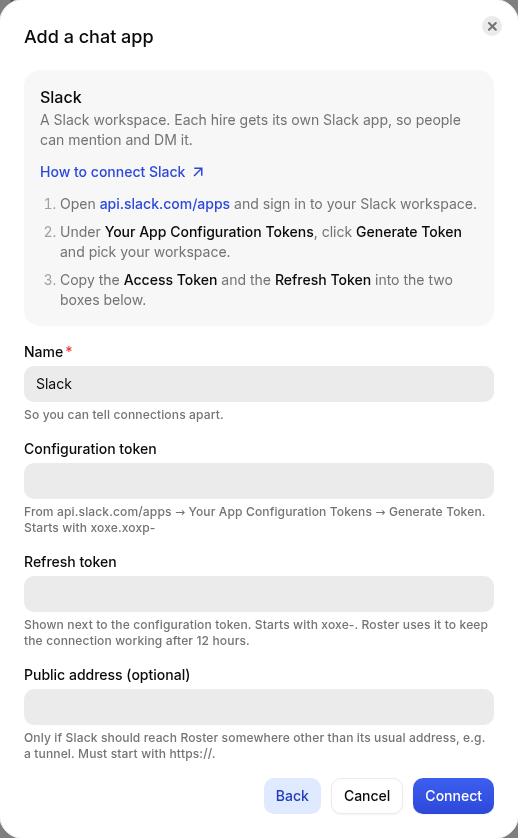
Roster keeps both sealed and never shows them again. The access token lasts 12 hours; Roster renews it with the refresh token whenever it makes a hire's app, so you don't have to come back.
Note
If Roster ever says Slack no longer accepts the token (for example, the person who made it left the Slack workspace), generate a new pair and paste them in with Change on the connection.
2. Give a hire a Slack identity (once per hire)
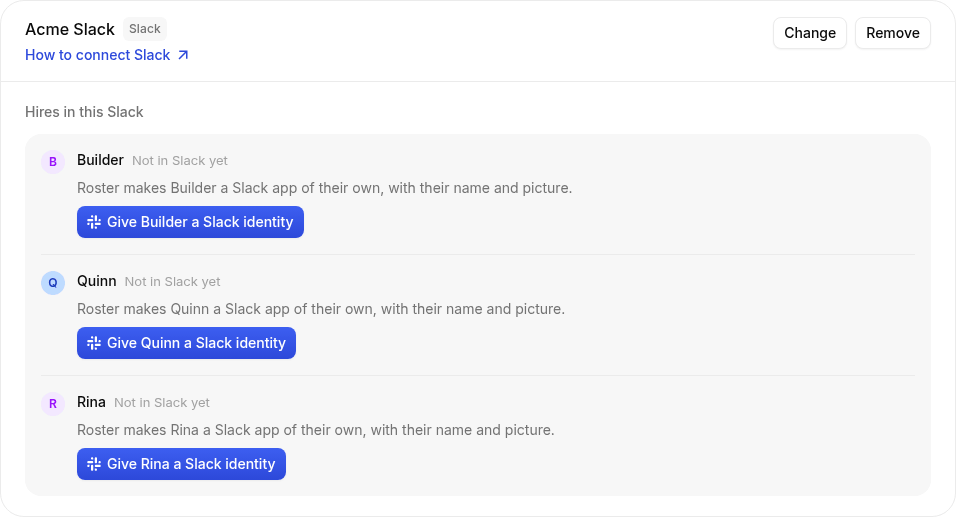
Under your Slack connection on Integrations → Chat (or on the hire's Chat tab):
- Click Give name a Slack identity. Roster makes the hire's Slack app with its name, its job title as the description and its picture.
- Click Install in Slack. Slack shows what the hire may do. Click Allow.
- Slack sends you back to Roster, which says the hire is in Slack.
What the hire may do in Slack
| Permission | Why |
|---|---|
| Read messages in channels it's in, and its DMs | To see what it's asked |
| Write messages | To reply in threads and post in its home channel |
| Look up people's names | To know who's asking and mention people |
| Add reactions | To put 👀 on a thread while it works, and to react |
| See reactions | To see reactions on its own messages |
It only reads channels it has been invited to.
3. Work with it in Slack
- Invite it to channels:
/invite @namein the channel, or mention it and accept Slack's offer to add it. - DM it from its profile or the Apps section of the sidebar.
- It answers when mentioned, in DMs and in threads it's already in, and replies in the thread. While it works it puts 👀 on the thread and takes it off when it's done.
- It reacts and sees reactions like anyone else (see Reactions and threads). A hire given its Slack identity before November 2026 sees reactions only after it's taken out of Slack and given its identity again.
Take out of Slack deletes the hire's app in Slack.
Socket Mode
If Roster has no https address, step 2 is different:
- Click Give name a Slack identity as above.
- Click their app in Slack (it opens the app's OAuth & Permissions page), click
Install to Workspace, then Allow. Copy the Bot User OAuth Token (
xoxb-…). - On the app's Basic Information page, under App-Level Tokens, click
Generate Token and Scopes, name it
roster, add the scopeconnections:write, and click Generate. Copy the token (xapp-…). - Paste both into Roster and click Save tokens.
Troubleshooting
- "Slack lets Roster make about one app a minute." That's Slack's limit. Wait a minute.
- Slack shows the request URL as not verified. Open the hire's app in Slack → Event Subscriptions and click Retry.
- The hire doesn't answer in a channel. It must be in the channel (
/invite @name), and the person must be allowed under the hire's Settings → Who they answer. - No picture. Slack sometimes refuses pictures made by programs; upload one on the app's Basic Information → Display Information page.