MCP servers
Connect any MCP server, a vendor's or one on your own network, and choose which of its tools hires may use.
Explore authentication, permissions and available actionsExact inputs, sign-in scopes, access limits and approval rules.
Many tools now run an MCP server: a standard way for an app to offer its actions to AI. Most of the catalog's tools that say Ready to connect are the vendor's own MCP server, already set up. You can also connect any other one by its address, including a server on your own network.
Roster talks to the server for your hires. The sign-in stays in Roster; hires only see the server's tools, under the connection's name.
Connect one
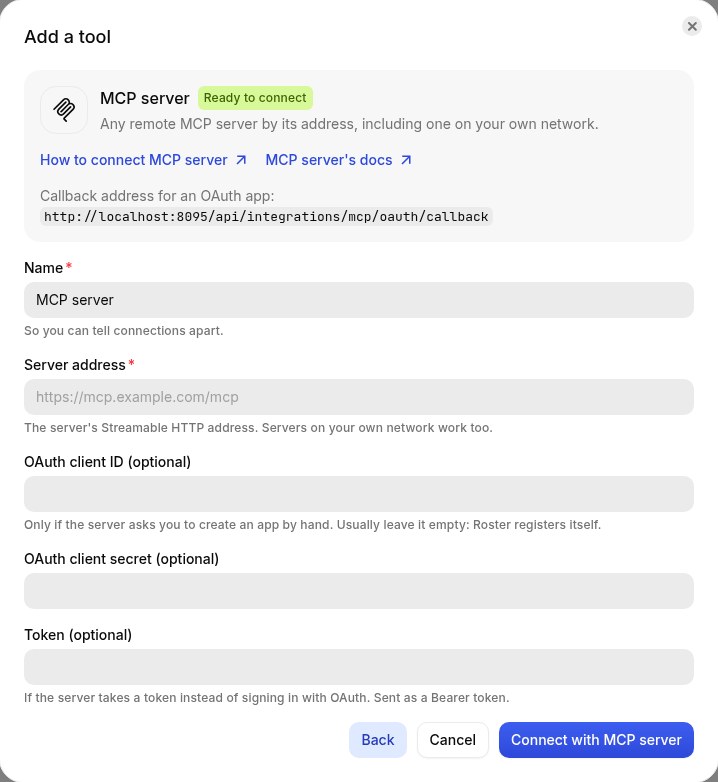
- Open Integrations → Tools → Add a tool and choose MCP server (or a vendor from the catalog).
- Server address: the server's address for Streamable HTTP, usually ending in
/mcp. - Sign in:
- With OAuth (most servers): leave Token empty and click Connect with MCP server. Roster finds where the server signs people in, registers itself there, and sends you to approve. If the server doesn't let apps register themselves, create an OAuth app on it, use the callback address the form shows, and paste the app's client ID (and secret).
- With a token: paste it into Token. It's sent as a Bearer token.
Test it and choose its tools
Click Test connection (or Tools on the connection later). Roster asks the server for its tools and lists them with whether each one only reads.
- Untick tools no hire should use.
- Tools the server doesn't mark as read-only count as Changes things, so a hire with read-only access never gets them. Tick Changes nothing only for tools you're sure only read.
- Click Save tools.
When the server adds tools later, click Test again. Until then hires keep exactly the tools you saved.
Give hires access
On each hire's Tools tab, give access to the connection: Read only or Read and write, and, if you like, only some of its tools. See Adding a tool.
Ask before using
On the connection, Ask before using set to Tools that change things makes every call to a tool that changes something wait for a person's approval in chat. When the approver says yes, Roster makes exactly that call, once. Tools that only read never ask.
New connections start with Tools that change things. Once you trust your hires with the server, change it to Only tools a hire is set to ask about. Connections made before this was the default keep what they had. For single tools, or one hire only, use When it asks first on the hire's Tools tab.
Good to know
- What a tool returns is shortened when it's very long, and anything that looks like the connection's own token or password is removed before a hire sees it.
- Servers on your own network work when Roster can reach them.
- If the server's sign-in expires or is revoked, hires are told plainly; click Reconnect on the connection.
Tools and permissions reference
This reference is built from the same definitions Roster uses to connect MCP server and give hires access. It updates with each release.
Authentication and requested permissions
The account or app you connect sets the outer limit. Each hire's access can narrow it further. Connecting a tool gives it to no hire until you give access on that hire's Tools tab.
MCP OAuth
The server supplies its authorization details and requested scopes when you connect. Review its consent screen.
API key or access token
If the server takes a token instead of signing in with OAuth. Sent as a Bearer token.
No sign-in
Connecting without a sign-in credential is supported when the service allows it.
No fixed permission list is declared for this connection. Review the sign-in consent screen, the account's roles, and the service's own documentation before connecting.
Connection fields
| Field | What to provide |
|---|---|
Server addressurlRequired | The server's Streamable HTTP address. Servers on your own network work too. |
OAuth client IDclientIdOptional | Only if the server asks you to create an app by hand. Usually leave it empty: Roster registers itself. |
OAuth client secretclientSecretOptional · sealed secret | Use the value for your account or connection. |
TokentokenOptional · sealed secret | If the server takes a token instead of signing in with OAuth. Sent as a Bearer token. |
Ask before usingaskFirstOptional | With “Tools that change things”, a hire's call to any tool here that changes something waits for a person's approval in chat, and runs exactly as asked once approved. New connections start there; choose the other option once you trust the hires with this connection. Each hire's Tools tab can also ask for single tools. Choices: Only tools a hire is set to ask about (never); Tools that change things (writes). Starts with: |
Per-hire limits
Read-only hires receive only actions that read. Read-and-write access also allows actions that change things, where the connection itself permits them. An empty resource allowlist usually means everything the connected account can reach; each field below explains its meaning.
| Field | What to provide |
|---|---|
ToolstoolsOptional | Leave empty for every tool on this connection. |
Actions
Actions come from the MCP server you connect, so there is no fixed action list to promise here.
Use Test connection to inspect the exact names, descriptions and read/write classifications; select the actions and Save tools. Retest when the service changes. A server's read-only labels are supplied by that server: review them before granting access.
Watches and incoming events
- No built-in watch is declared. Give a hire a scheduled responsibility if it should check this service regularly.
- No incoming webhook handler is declared for this integration.
Limits and troubleshooting
- Permission errors: check both the connected account's rights and the hire's resource and read/write limits.
- Expired or revoked access: reconnect or replace the key on the connection.
- Rate limits and unavailable services can interrupt work. The hire's timecard records the outcome.
- The action schema describes accepted inputs. It does not grant additional access or bypass approvals.